
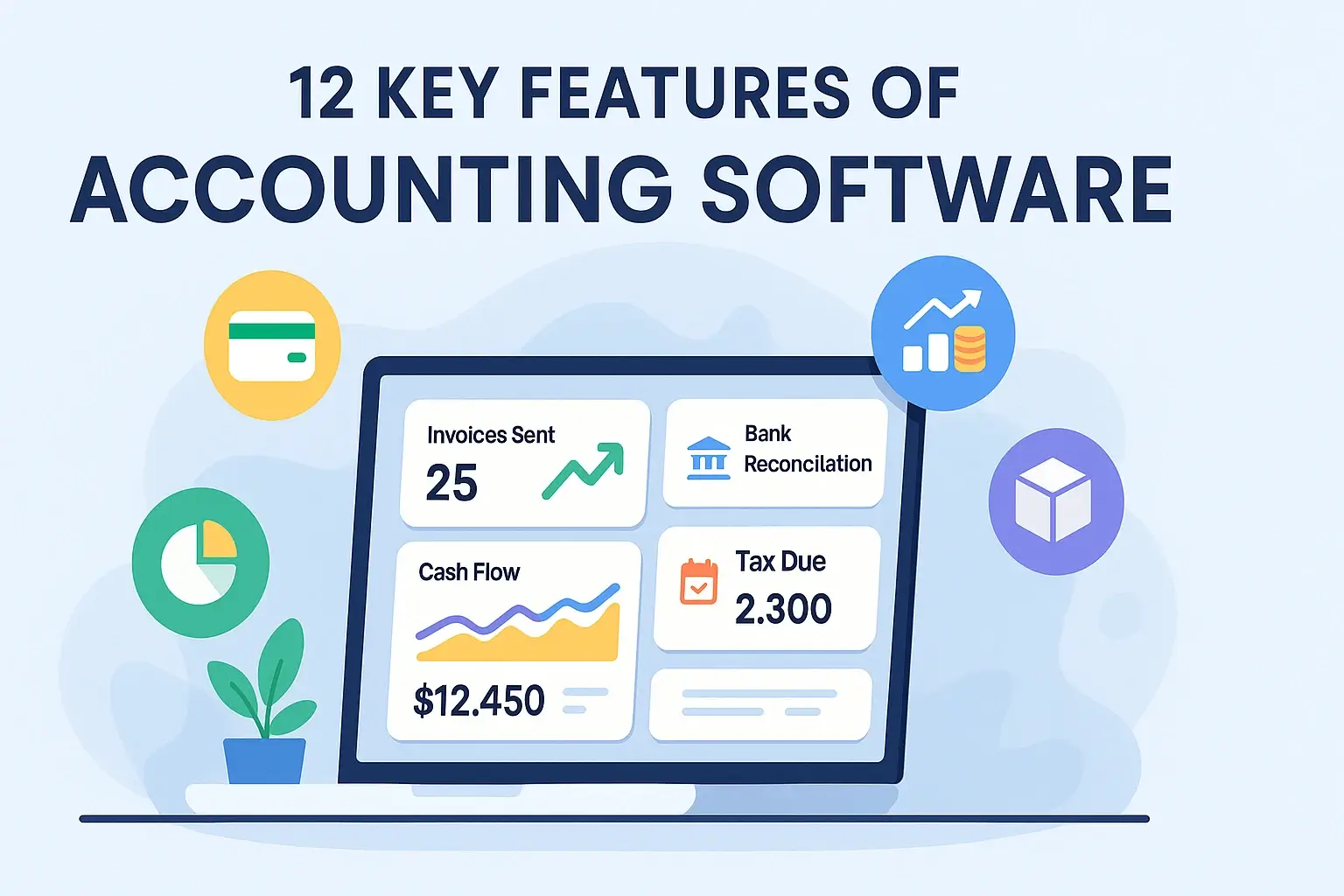
Accounting software records business transactions, organizes them using accounting rules, and turns the data into reports such as income statements, balance sheets, cash flow statements, invoices, and tax records. Most systems use double-entry accounting, where each transaction affects at least two accounts so the books remain balanced.
Introduction
For a U.S. business, accounting software can replace much of the manual work once done with spreadsheets, paper ledgers, and calculators. It can track sales, expenses, payroll data, invoices, payments, bank activity, assets, and debts in one system.
The software does not “understand” a business in the same way a bookkeeper or CPA does. It follows rules, account settings, transaction categories, and user instructions. The quality of the reports depends on the quality of the data entered and the choices made during setup.
This guide explains how accounting software works, what happens to each transaction, how reports are created, and where software still needs human review. It focuses on common accounting needs in the United States, including cash and accrual accounting, sales tax, payroll, bank feeds, and U.S. tax records.
What Is Accounting Software?
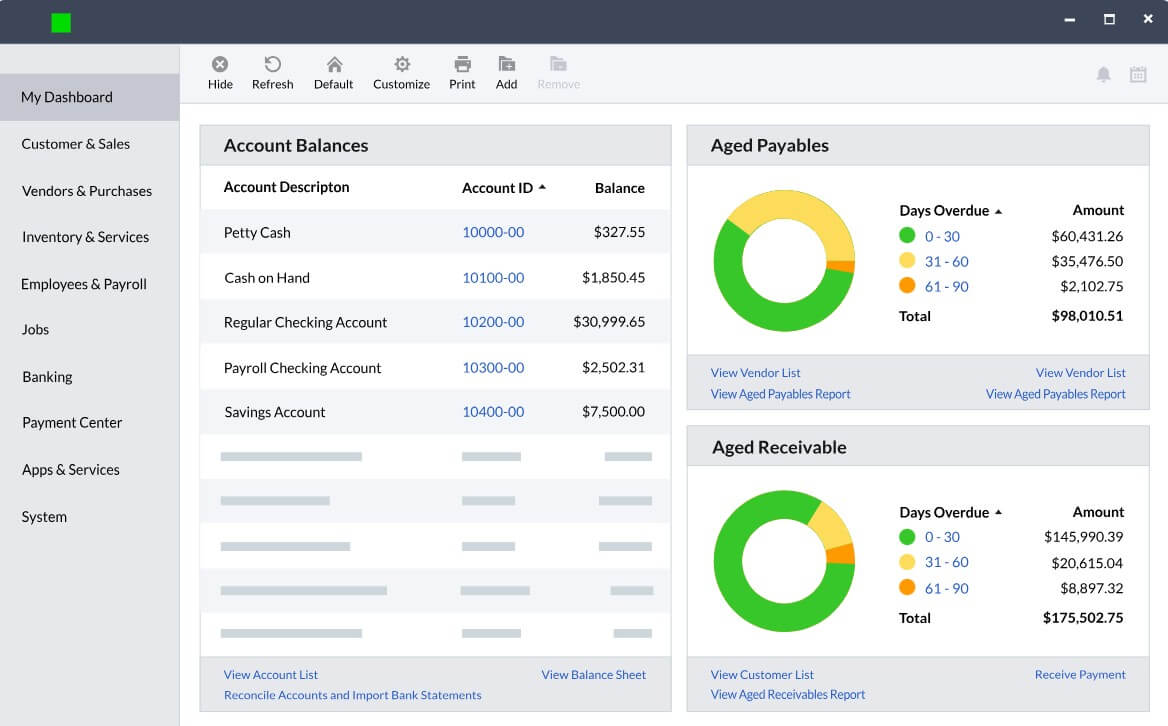
Accounting software is a digital system that stores, classifies, processes, and reports financial information. It may be installed on a computer, hosted in the cloud, or offered as a combination of both.
Most accounting programs include some or all of these functions:
- Chart of accounts management
- Income and expense tracking
- Invoicing and customer payments
- Bills and vendor payments
- Bank and credit card reconciliation
- Payroll integration or payroll processing
- Sales tax tracking
- Inventory management
- Fixed asset tracking
- Financial reports
- User permissions and audit trails
- Data export and tax preparation support
The chart of accounts is the system’s financial filing structure. It usually contains account groups such as assets, liabilities, equity, revenue, and expenses.
The five basic account types
| Account type | What it represents | Common examples |
|---|---|---|
| Assets | Things the business owns or controls | Cash, inventory, equipment, accounts receivable |
| Liabilities | Amounts the business owes | Loans, credit cards, accounts payable, sales tax payable |
| Equity | The owner’s financial interest | Owner contributions, retained earnings |
| Revenue | Money earned from business activity | Service income, product sales, rental income |
| Expenses | Costs incurred to operate the business | Rent, wages, insurance, advertising |
Accounting software uses these account types to organize transactions. For example, a customer payment may increase the company’s bank account and reduce accounts receivable.

How Does Accounting Software Work?
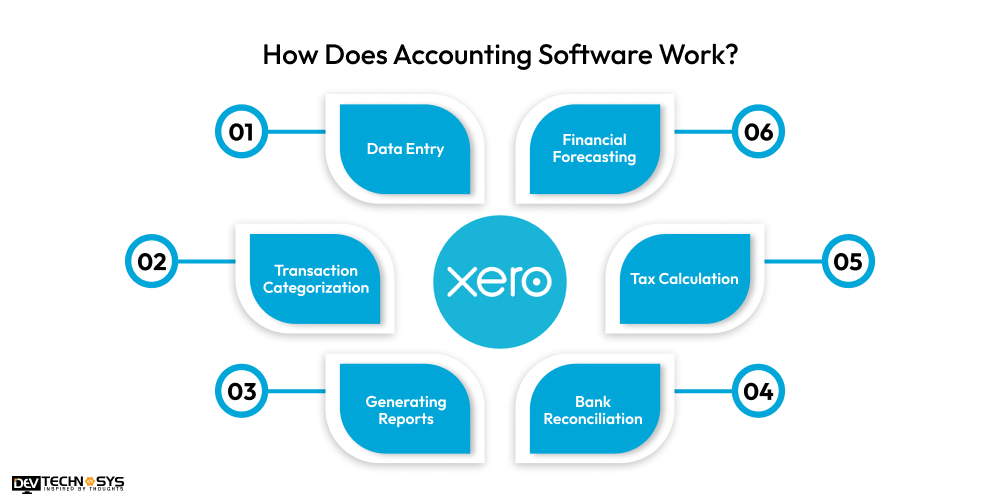
Accounting software works by moving financial data through a series of connected steps:
- The user or an integration captures a transaction.
- The software assigns the transaction to accounts.
- The system records the transaction in a ledger.
- It updates balances and related records.
- Reports use the updated data to show the business’s financial position.
This process is similar to placing each business event into the correct financial folder. The software then totals the folders and prepares useful summaries.
Step 1: The system captures financial data
A transaction can enter the system in several ways:
- A user enters a sale or expense manually.
- A bank feed imports a transaction.
- An invoice creates a customer balance.
- A receipt is scanned or uploaded.
- A point-of-sale system sends sales data.
- An e-commerce platform sends order information.
- A payroll system sends wage and tax entries.
- An employee submits an expense report.
Imported data is not always final. A bank feed may show that money left the account, but it may not know whether the payment was for rent, supplies, equipment, or a loan.
Step 2: The software classifies the transaction
The software uses rules, categories, past activity, and user choices to classify the transaction. Some programs suggest a category based on the description or vendor name.
For example, a payment to an internet provider may be suggested as a communications expense. A payment to a lender may need to be split between loan principal and interest.
Automatic suggestions save time, but they can be wrong. A business owner or bookkeeper should review unusual, large, or important transactions.
Step 3: The system applies double-entry accounting
Most business accounting software uses double-entry accounting. Each transaction has a debit and a credit, and the total debits must equal the total credits.
A debit does not always mean “money out.” A credit does not always mean “money in.” Their effect depends on the account type.
For example, when a business receives $1,000 in cash for a completed service:
- Cash increases by $1,000.
- Service revenue increases by $1,000.
When a business buys $400 of office supplies with a bank card:
- Office supplies expense increases by $400.
- The bank or credit card balance decreases, or the liability increases.
The accounting equation remains balanced:
Assets = Liabilities + Equity
Revenue and expenses affect equity through the business’s profit or loss.
Step 4: The software posts the transaction to the ledger
A general ledger is the main record of a business’s accounts. The accounting software posts each transaction to the relevant ledger accounts.
The ledger may include:
- The transaction date
- The amount
- The affected accounts
- The customer or vendor
- A description
- Attached documents
- The person who entered or changed it
The ledger is the detailed source behind many financial reports.
Step 5: The software updates balances and reports
After posting a transaction, the system updates account balances. A new customer invoice may increase accounts receivable and revenue. A customer payment may increase cash and reduce accounts receivable.
Reports then use those account balances. The same transaction can affect several reports at once.
For example, a $5,000 cash sale may:
- Increase revenue on the income statement.
- Increase cash on the balance sheet.
- Increase operating cash flow on the cash flow statement.
- Increase sales tax payable if taxable sales are involved.
How Do Bank Feeds and Reconciliation Work?
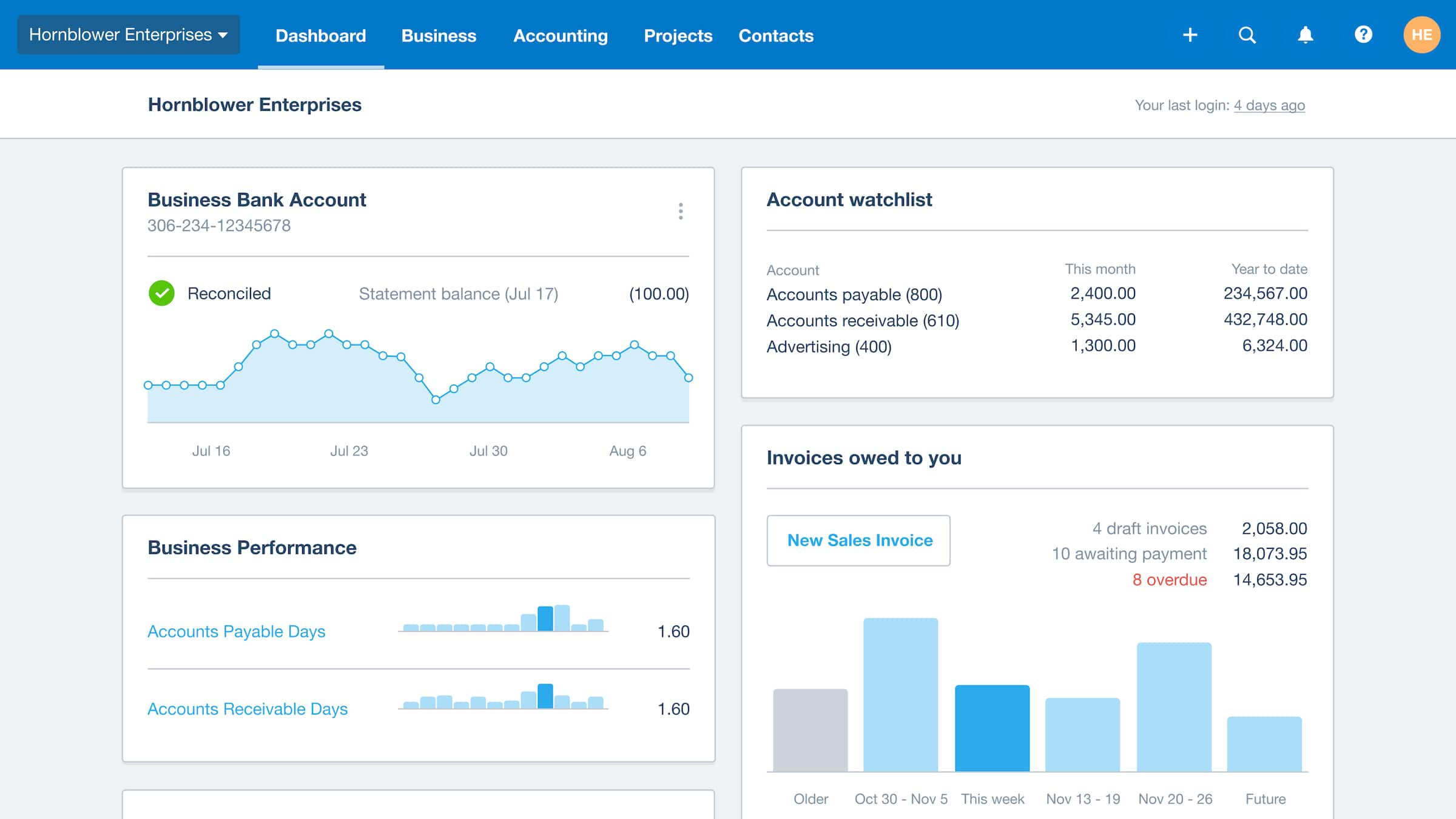
Bank feeds import transaction data from a financial institution into the accounting system. The software may use a secure connection or a file upload, depending on the bank and the software.
A bank feed helps reduce manual entry, but it does not replace reconciliation.
What bank feeds usually do
A bank feed may:
- Import deposits and withdrawals
- Show transaction dates and descriptions
- Suggest account categories
- Match payments to invoices
- Match deposits to sales receipts
- Detect possible duplicate entries
- Help identify missing transactions
The imported bank data usually shows what the bank recorded. It does not always show the correct accounting treatment.
What reconciliation does
Reconciliation compares the accounting records with an external statement, such as a bank or credit card statement. The goal is to confirm that the ending balance in the accounting system agrees with the statement after legitimate timing differences are considered.
A basic reconciliation process is:
- Select the statement period.
- Enter the statement ending balance.
- Compare deposits and withdrawals.
- Match each item to the accounting records.
- Investigate missing, duplicated, or incorrect entries.
- Record valid bank fees, interest, or corrections.
- Confirm that the difference is zero.
A zero difference is a useful sign, but it does not prove that every transaction was categorized correctly. A payment can be posted to the wrong expense account and still reconcile perfectly.
Common reconciliation problems
Common causes of an incorrect balance include:
- A transaction entered twice
- A transaction missing from the books
- An uncleared check
- A bank fee not recorded
- A transfer recorded as income
- A personal purchase posted as a business expense
- A transaction posted to the wrong bank account
- A beginning balance that is incorrect
Businesses should reconcile accounts regularly. Monthly reconciliation is common, while businesses with high transaction volume may reconcile more often.
How Do Accounting Reports Get Created?
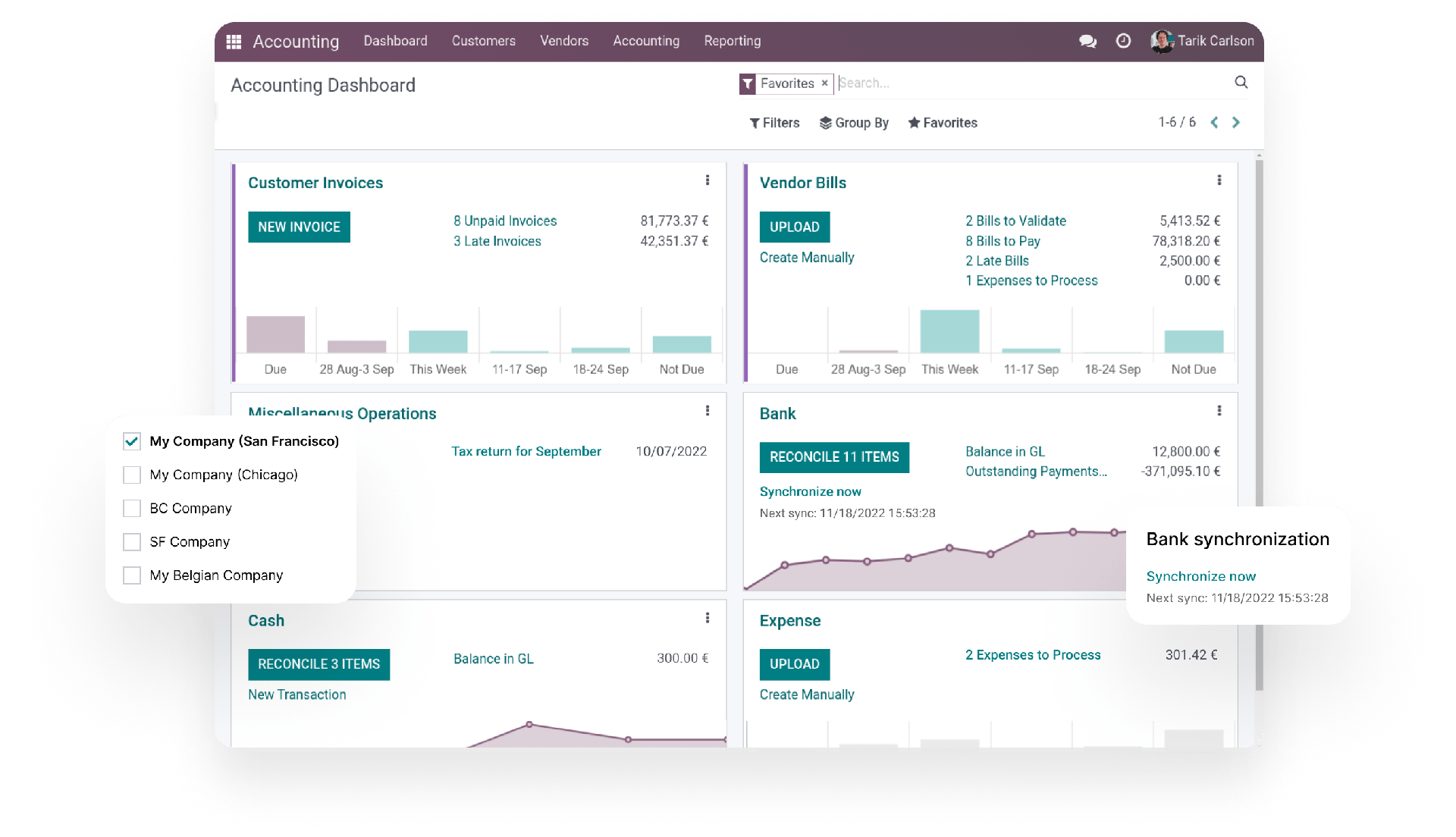
Accounting reports are created from the account balances and transaction records stored in the ledger. The report’s result depends on the selected date range, accounting method, account structure, and transaction status.
Income statement
An income statement, also called a profit and loss statement, shows revenue, expenses, and net income for a specific period.
Net income = Revenue − Expenses
For example, a hypothetical business may report:
| Item | Amount |
|---|---|
| Service revenue | $80,000 |
| Operating expenses | $52,000 |
| Net income | $28,000 |
This report helps answer whether the business earned a profit during the selected period. It does not necessarily show how much cash the business has.
Balance sheet
A balance sheet shows the company’s financial position at a specific date. It includes assets, liabilities, and equity.
Assets = Liabilities + Equity
For example:
| Category | Amount |
|---|---|
| Total assets | $120,000 |
| Total liabilities | $45,000 |
| Owner’s equity | $75,000 |
The balance sheet can help show whether the business has enough assets to cover its obligations.
Cash flow statement
A cash flow statement explains changes in cash. It commonly groups cash activity into:
- Operating activities
- Investing activities
- Financing activities
A business can have positive net income but weak cash flow. This may happen when customers have not paid their invoices or when the business has bought equipment.
Accounts receivable aging report
An accounts receivable aging report shows unpaid customer invoices by age. Typical groups include:
- Current
- 1–30 days overdue
- 31–60 days overdue
- 61–90 days overdue
- More than 90 days overdue
This report helps a business decide which customers need payment reminders.
Accounts payable aging report
An accounts payable aging report lists unpaid vendor bills and their due dates. It can help prevent late fees and support cash planning.
Sales tax reports
Sales tax reports may show taxable sales, exempt sales, collected tax, and tax due by jurisdiction. U.S. sales tax rules vary by state and, in some cases, by local jurisdiction. Software can calculate and track tax, but the business remains responsible for correct registration, filing, and payment.
Cash basis and accrual basis reports
Accounting software may support different accounting methods:
- Cash basis: Income is generally recorded when payment is received, and expenses are generally recorded when paid.
- Accrual basis: Income is generally recorded when earned, and expenses are generally recorded when incurred.
The correct method can depend on the business structure, tax rules, lender requirements, and financial reporting needs. The IRS explains accounting methods in its business tax guidance, including Publication 538.

How Does Accounting Software Handle Invoices and Payments?
Accounting software connects invoices, customer balances, payments, and revenue records. When a business creates an invoice, the system usually records revenue and an amount owed by the customer under accrual accounting.
A typical invoice workflow looks like this:
- Create an invoice for a customer.
- Add products, services, quantities, prices, and tax treatment.
- Send the invoice by email or customer portal.
- Track the invoice as open.
- Record the customer payment.
- Match the payment to the invoice.
- Mark the invoice as paid.
If the customer pays later, the system can show the amount as accounts receivable. If the customer pays at once, the invoice and payment may be recorded together.
Payment processing and accounting records
Some accounting systems connect to card processors, ACH services, online payment tools, or point-of-sale systems. These connections may automatically record customer payments and processing fees.
For example, if a customer pays a $1,000 invoice and the processor withholds a $30 fee:
- Cash received may be $970.
- Payment processing expense may be $30.
- The invoice may be marked paid for $1,000.
The exact entry depends on the system’s integration and the business’s accounting method. Businesses should review processor deposits because one bank deposit may combine many customer payments.
How Do Payroll, Sales Tax, and Inventory Features Work?
Specialized features add more rules to ordinary transaction entry. They can save time, but they also need careful setup.
Payroll
Payroll systems calculate or store information about:
- Employee wages
- Federal income tax withholding
- Social Security and Medicare taxes
- State and local taxes
- Employer payroll taxes
- Benefits and deductions
- Paid time off
- Payroll filings and forms
Payroll laws are complex and vary by worker type and location. A payroll feature may calculate amounts, but the employer must provide accurate employee information, work locations, pay rates, and tax elections.
The IRS provides employer guidance through its Tax Information for Businesses resources.
Sales tax
Sales tax tools may use product categories, customer locations, tax registrations, and tax rules to calculate tax. The result may depend on whether the sale is taxable, where the customer is located, and whether the business has an obligation to collect tax.
A software calculation does not decide whether a business has sales tax nexus. Nexus is the connection that may create a state tax collection obligation. Businesses should review state requirements and consult a tax professional when their sales cross state lines.
Inventory
Inventory accounting tracks products held for sale. Depending on the software, it may record:
- Units purchased
- Units sold
- Quantity on hand
- Purchase cost
- Sales price
- Cost of goods sold
- Reorder levels
- Damaged or obsolete goods
Inventory requires accurate counts and cost data. A system can show a quantity on hand, but a physical count may reveal theft, damage, shipping errors, or data mistakes.

What Is the Difference Between Cloud and Desktop Accounting Software?
Cloud accounting software runs on remote servers and is accessed through the internet. Desktop accounting software is installed and operated on a local computer or network.
| Feature | Cloud software | Desktop software |
|---|---|---|
| Access | Usually available through an internet-connected browser or app | Usually tied to an installed computer or network |
| Updates | Often managed by the provider | Often installed by the user or administrator |
| Collaboration | Usually easier for multiple users | May require network setup |
| Offline use | Often limited or app-dependent | Usually stronger for local work |
| Data control | Data is commonly stored by the provider | Data is commonly stored locally |
| Backup responsibility | Often shared with the provider, but exports still matter | More responsibility falls on the business |
Cloud software still needs security controls. A business should use strong passwords, multi-factor authentication, limited user permissions, and regular review of connected apps.
No software model removes the need for backups. Keep important reports, tax documents, and data exports according to the business’s record-retention needs.

How Should a Business Set Up Accounting Software?
A careful setup creates more reliable reports than a rushed setup. The best process is to start with the business model and records, not with software buttons.
Prerequisites
Before setup, gather:
- Legal business name and tax information
- Business start date
- Bank and credit card details
- Prior accounting records
- Outstanding invoices
- Unpaid bills
- Loan statements
- Inventory records
- Payroll information
- Sales tax registrations
- Fixed asset records
- Prior tax returns, when available
Recommended setup steps
-
Choose the accounting method.
Confirm whether the business will use cash or accrual accounting for its intended purpose. -
Build or review the chart of accounts.
Use enough detail to support decisions and tax work. Avoid creating dozens of nearly identical expense accounts. -
Set the opening balances.
Opening balances should agree with reliable bank statements, financial statements, loan records, and prior books. -
Connect financial accounts.
Connect bank, credit card, payment processor, payroll, and sales systems only when the connection is needed. -
Set customer and vendor records.
Include payment terms, tax details, contact data, and duplicate-record checks. -
Configure tax settings.
Review sales tax, payroll tax, and other applicable settings for the states where the business operates. -
Create user roles.
Give each person only the access needed for their work. -
Import or enter opening transactions.
Check dates, amounts, account categories, and beginning balances. -
Run test reports.
Review the income statement, balance sheet, accounts receivable, accounts payable, and tax reports. -
Set a recurring close process.
Reconcile accounts, review unusual entries, check unpaid balances, and lock or close completed periods when appropriate.
Signs that setup worked
The setup is likely on the right track when:
- Bank and credit card balances reconcile.
- The balance sheet balances.
- Opening balances agree with source records.
- Customer and vendor balances are reasonable.
- Income and expense categories match the business model.
- Tax settings reflect the business’s actual obligations.
- Reports can be understood by the owner, bookkeeper, or CPA.
If the reports look wrong, stop adding new data until the cause is found. More entries can make an error harder to trace.

What Are the Main Benefits and Limits of Accounting Software?
Accounting software improves speed, consistency, and access to financial information. It does not eliminate accounting judgment.
Main benefits
Accounting software can:
- Reduce repeated data entry
- Create invoices quickly
- Track unpaid bills
- Automate recurring transactions
- Import bank activity
- Produce reports on demand
- Support remote access
- Create audit trails
- Share records with a bookkeeper or CPA
- Help identify unusual cash activity
Important limitations
Accounting software may not correctly handle:
- A transaction with unclear business purpose
- Mixed personal and business spending
- Complex partnership allocations
- Mergers or acquisitions
- Advanced inventory valuation
- Multi-state tax issues
- Foreign currency rules
- Debt modifications
- Asset sales
- Tax elections
- Industry-specific compliance
Automation can also repeat an error. For example, a rule that classifies every payment to a vendor as “office supplies” may misclassify equipment, repairs, or deposits.
Software is a tool, not a substitute for judgment. A CPA, enrolled agent, or qualified bookkeeper may be needed for tax planning, financial statements, payroll compliance, cleanup work, or complex transactions.
Common Accounting Software Mistakes
Small errors can spread across reports because accounting records are connected. Watch for these common problems:
Mixing personal and business expenses
Use separate business accounts whenever possible. If a personal expense enters the business books, record it correctly rather than hiding it in an ordinary expense category.
Treating transfers as income
A transfer from checking to savings changes the location of cash. It usually does not create revenue. The system should record it as a transfer between accounts.
Recording loan proceeds as revenue
A loan increases cash and creates a liability. It is not ordinary business income. Loan principal and interest also need separate treatment.
Failing to reconcile
Imported transactions can be missing, duplicated, or misclassified. Reconciliation helps detect these problems.
Using the wrong tax category
Not every expense is deductible in the same way. Some purchases may need capitalization, depreciation, or special tax treatment.
Deleting transactions without a record
Deleting entries can make the audit trail unclear. Use voids, reversals, or corrections when the software and accounting policy call for them.
Ignoring unpaid invoices
Revenue and cash can tell different stories. Review accounts receivable so reported sales do not create a false sense of available cash.

How Do You Choose Accounting Software?
Choose accounting software based on the business’s transactions, reporting needs, tax situation, users, and required integrations.
Consider these questions:
- Does the software support cash, accrual, or both?
- Can it create the reports the business needs?
- Does it support invoices and bills?
- Can it reconcile bank and credit card accounts?
- Does it handle inventory if needed?
- Does it integrate with payroll and payment processors?
- Does it support the business’s sales tax needs?
- Can multiple users work with suitable permissions?
- Can the business export its data?
- What happens if the subscription ends?
- What support and training are available?
- Does it provide an audit trail?
- Are backups and recovery options clear?
A freelancer with a few monthly transactions may need only basic income, expense, invoice, and reconciliation features. A retailer may need inventory, point-of-sale, purchase orders, and sales tax support. A growing employer may need payroll, approvals, job costing, and role-based access.
Do not select a system only because it has the most features. Extra features can increase cost and setup complexity without helping the business.
Key Takeaways
- Accounting software records transactions and organizes them into accounts.
- Most systems use double-entry accounting.
- The chart of accounts controls how transactions are grouped.
- Bank feeds reduce data entry but do not replace reconciliation.
- Financial reports depend on accurate data, account settings, and date ranges.
- Cash and accrual accounting can produce different results.
- Payroll, sales tax, and inventory require special setup.
- Automation can save time but can also repeat incorrect rules.
- Software does not replace professional judgment for complex tax or accounting matters.
- Regular reconciliation and review are central to reliable books.
Frequently Asked Questions
Does accounting software do the accounting automatically?
It automates many tasks, such as calculations, transaction imports, invoice reminders, and report creation. It still needs correct setup, transaction review, reconciliation, and human judgment.
Is accounting software enough for tax filing?
Not always. It can organize records and produce useful reports, but tax filing depends on the business structure, deductions, payroll, state rules, sales tax, depreciation, and other facts. A tax professional may be needed.
Can accounting software make mistakes?
Yes. Errors may result from incorrect categories, duplicate imports, bad opening balances, wrong tax settings, or automatic rules. Review important transactions and reconcile accounts regularly.
Is a spreadsheet the same as accounting software?
No. A spreadsheet can track financial data, but accounting software usually provides a structured chart of accounts, double-entry controls, audit trails, reconciliations, permissions, and connected reports.
How often should a business review its accounting records?
Review frequency depends on transaction volume and risk. Many businesses reconcile bank and credit card accounts monthly. High-volume businesses may need weekly or daily review.
Can accounting software track both business and personal money?
It can record both, but combining them creates confusion and may weaken financial records. Separate business and personal accounts are usually easier to manage and review.
Conclusion
Accounting software works by turning business events into structured accounting records. It captures transactions, assigns them to accounts, applies double-entry rules, updates balances, and creates reports.
The software is most useful when the chart of accounts is clear, bank accounts are reconciled, tax settings are reviewed, and unusual transactions receive human attention. Start by listing the business’s accounts, income sources, expenses, debts, customers, vendors, and tax obligations. Then choose a system that supports those needs without adding unnecessary complexity.